

The SparkThink platform now supports the ability for survey admins to attach one or multiple files to outgoing survey emails. These attachments can include reference materials, instructions, or supporting documents that survey recipients may need for effective participation. Each file remains securely stored within SparkThink for 90 days, after which it is automatically deleted to uphold privacy and data protection standards. Even after expiration, administrators can view expired file names in the UI and re-upload them if necessary, ensuring continuity and flexibility in survey management.
Steps to add files to the survey emails:
- After formatting your survey email, navigate to the 'Review Email' or 'Edit Email' page to add attachments.
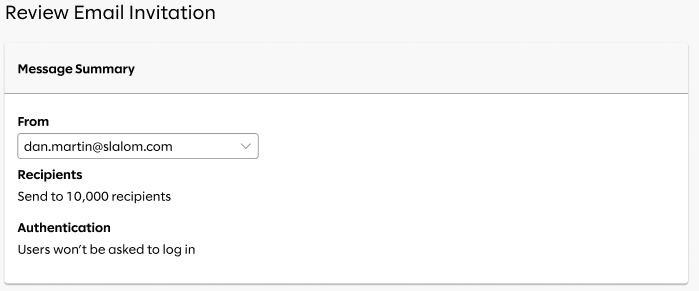
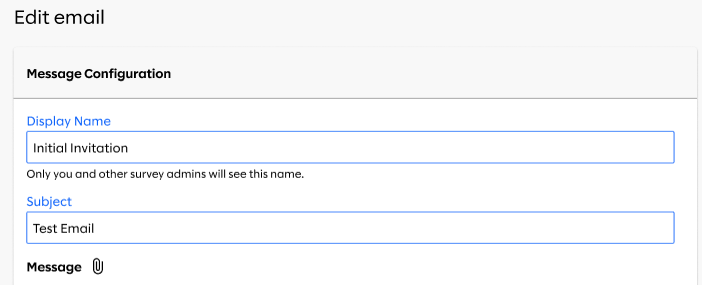
- Click the attachment icon to open the 'Attach Files' modal, where you can drag and drop files or browse to select them.
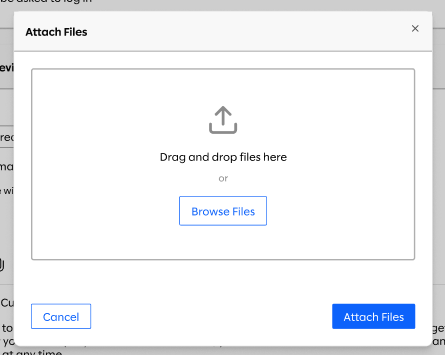
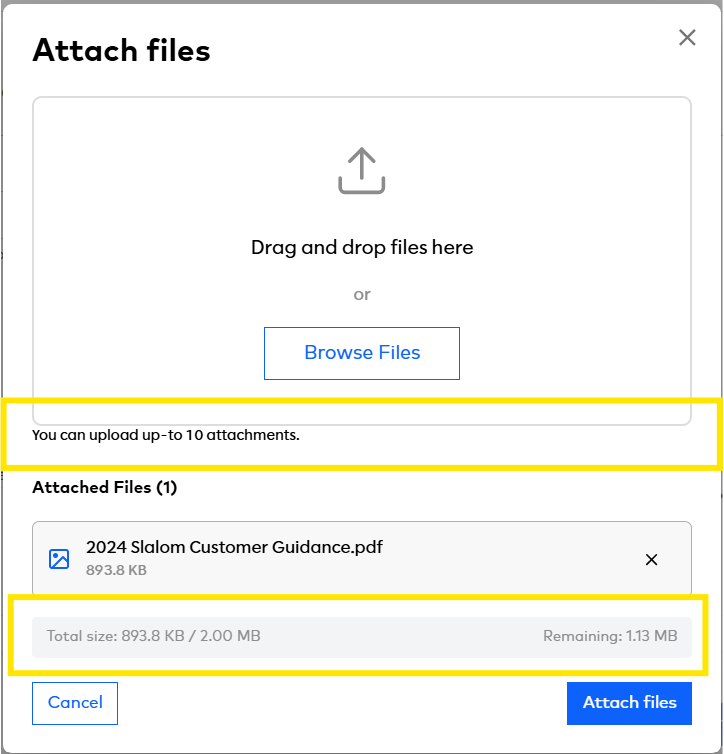
- Supported file formats include: .pptx, .docx, .xlsx, .pdf, .txt, .csv, .jpg/.jpeg, and .png. You may upload up to 10 attachments per email, with each file not exceeding 2MB.
- Upon successful upload, the platform will display the Attachment Storage Policy, detailing file retention and expiry.
- You can remove individual files or all attachments at once using the 'Remove All Active' option.
- Attachments are retained in SparkThink for 90 days from the upload date, after which they are automatically deleted to maintain privacy standards.
- Expired files remain visible in the UI for tracking purposes and can be re-uploaded if needed, which resets their retention period and removes the expired indicator.
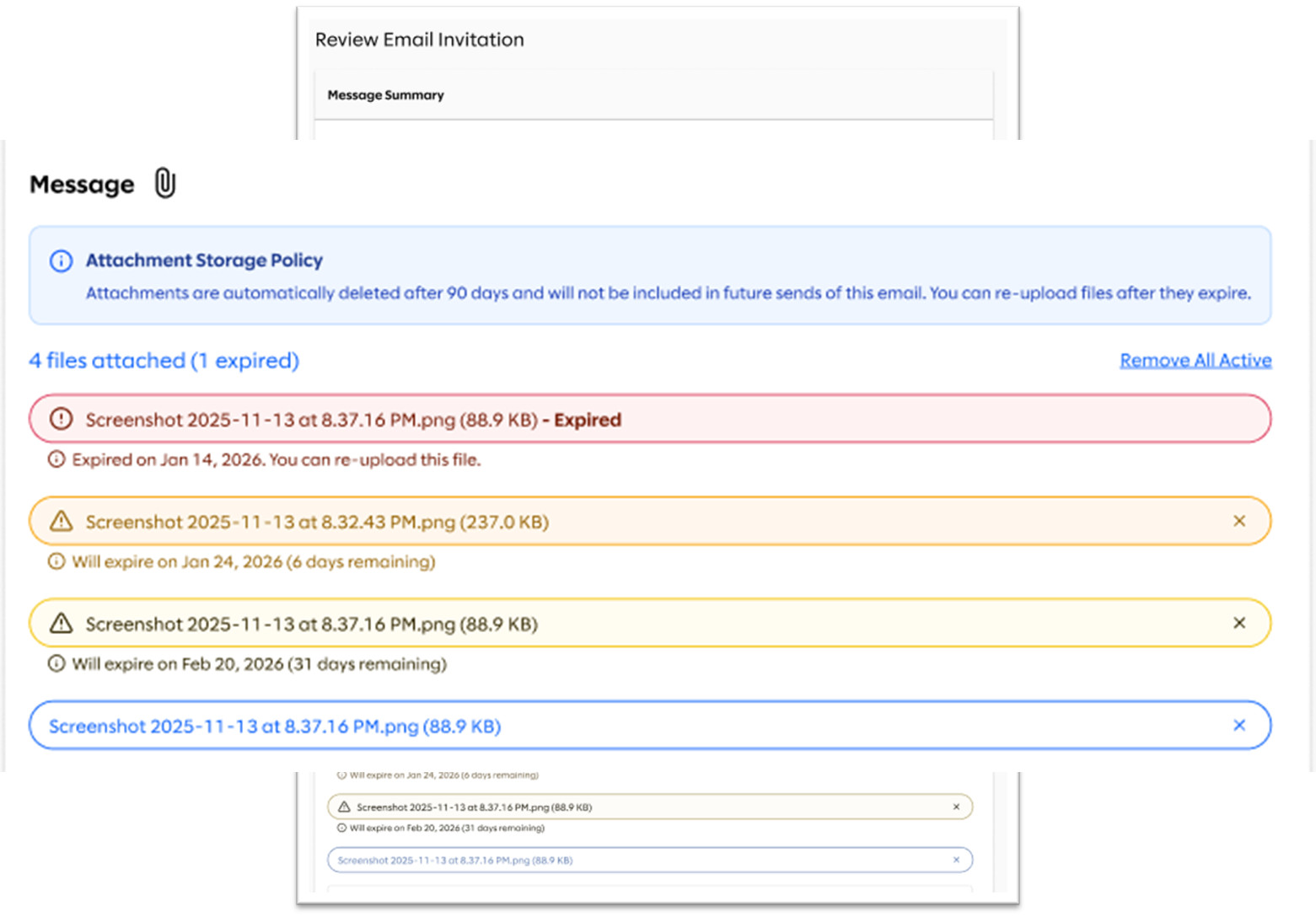
- Attachment status is color-coded for clarity:
- Yellow: 30–59 days remaining
- Orange: 60–89 days remaining
- Red: Expired
Admin Notification: Survey Email Attachments and Recipient Limits
To ensure successful delivery of survey emails with attachments, please note that due to email service limits, SparkThink team recommends keeping the number of recipients to 800 or fewer when sending attachments. If an email exceeds the service threshold, it will be marked as "Error" in the respondents table and can be resent after adjusting the recipient list. Please be assured that these emails will not have been sent, and you can confirm this in your Outlook Outbox before retrying.
This approach supports SparkThink’s commitment to delivering secure, reliable, and user-friendly experiences for all administrators and participants.